

curl and HTTPie to xh, Hurl, and Posting, with installation commands and practical examples.HTTP clients are tools that send requests to web servers and display the responses. Most Linux users first encounter them as a way to download files from the command line, but they’re just as useful for checking response headers, testing REST APIs, following redirects, and diagnosing errors from web servers and reverse proxies.
The challenge is choosing the right tool for the job. curl can handle almost any HTTP task, but its command-line options can get lengthy when working with JSON APIs.
Tools like HTTPie offer a more readable syntax for API testing, while dedicated download tools are better suited to tasks such as resuming a 4 GB ISO download.
In this guide, we’ll explore eight terminal HTTP clients, explain what each does best, and show you how to install and use them with real-world examples.
1. curl
curl is the command-line tool that almost every other HTTP client on this list gets compared with. It is a command-line utility and library (libcurl) for transferring data using URLs.
It supports numerous protocols, including HTTP, HTTPS, FTP, SFTP, SCP, IMAP, SMTP, and LDAP, which is why you’ll find it everywhere from Linux servers and container images to routers and media players.
For sysadmins, curl’s biggest advantage is its availability and is commonly installed on Linux systems, making it a reliable tool to reach for during an incident.
It also gives you precise control over requests, including headers, TLS settings, proxies, timeouts, and HTTP/2 or HTTP/3, depending on how curl was built.
On Ubuntu and Debian, install curl with apt:
sudo apt install curl
On Arch Linux, install it from the official repositories:
sudo pacman -S curl
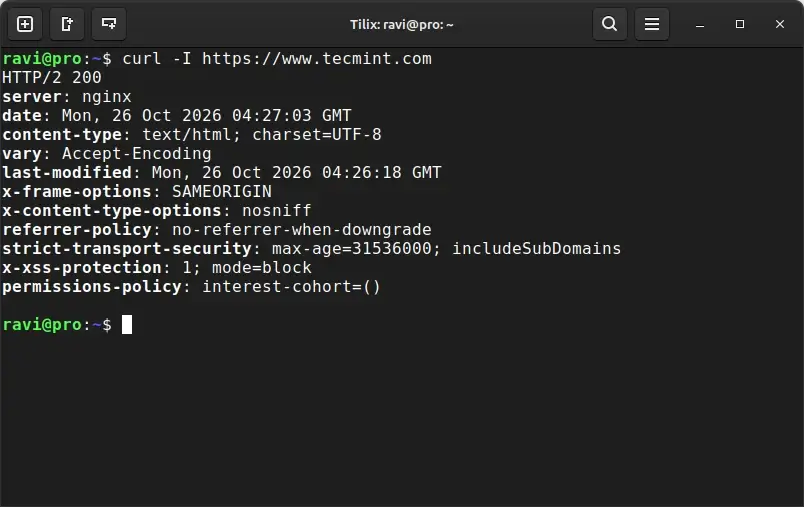
One common use for curl is checking a website’s response headers to verify redirects, caching policies, or other HTTP settings. The -I option sends a HEAD request and displays the response headers without downloading the response body:
curl -I https://www.tecmint.com
When testing an API, the --json option makes sending JSON payloads easier by setting the appropriate Content-Type and Accept headers and using POST by default:
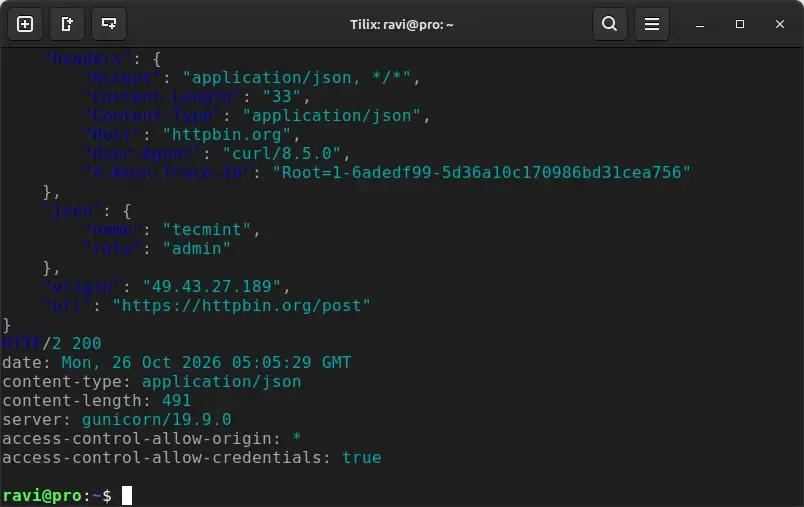
curl --json '{"name": "tecmint", "role": "admin"}' https://httpbin.org/post
Note: The --json option was introduced in curl 7.82.0, so it isn’t available in Ubuntu 22.04’s default curl 7.81.0 package. On that release, use -H "Content-Type: application/json" with -d to send the JSON payload instead:
curl -H "Content-Type: application/json" \
     -d '{"name": "tecmint", "role": "admin"}' \
     https://httpbin.org/post
2. HTTPie
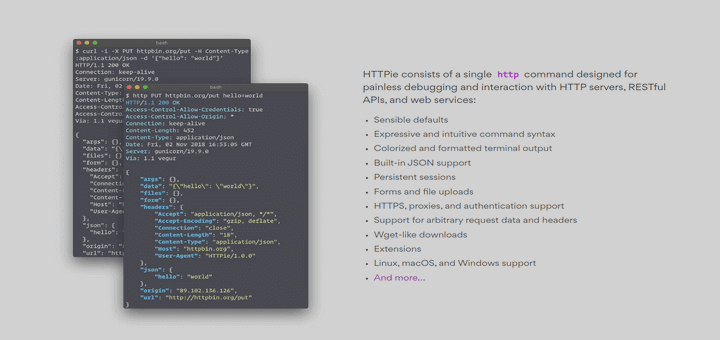
Where curl gives you full control, HTTPie focuses on making API requests easy to type and easy to read. It provides two commands, http and https, uses a simple key=value syntax for JSON data, and prints responses with colours and formatted JSON by default.
HTTPie also supports custom headers, persistent sessions, file uploads, and a plugin system, which makes it a comfortable daily tool for developers and DevOps engineers who test APIs all day. The project also offers a separate desktop and web app called HTTPie for Desktop if you prefer a graphical interface.
On Ubuntu and Debian, HTTPie is available in the default repositories:
sudo apt install httpie
On Rocky Linux, AlmaLinux, and RHEL, HTTPie comes from the EPEL repository, so enable EPEL first and then install the package (on Fedora, skip the first command because HTTPie is in the default repositories):
sudo dnf install epel-release
sudo dnf install httpie
On Arch Linux, install it with pacman:
sudo pacman -S httpie
With HTTPie installed, you can send the same JSON request from the curl example in a much shorter form. HTTPie sees the key=value items, builds a JSON body, and switches the method to POST automatically:
http POST httpbin.org/post name=tecmint role=admin
Sessions are useful when an API needs a login token on every request. The --session option saves headers and cookies under a name, so later requests can reuse them without you pasting the token again:
http --session=dev httpbin.org/headers Authorization:"Bearer YOUR_TOKEN"
http --session=dev httpbin.org/headers
The second command sends the same Authorization header because HTTPie loaded it from the dev session file.
3. xh
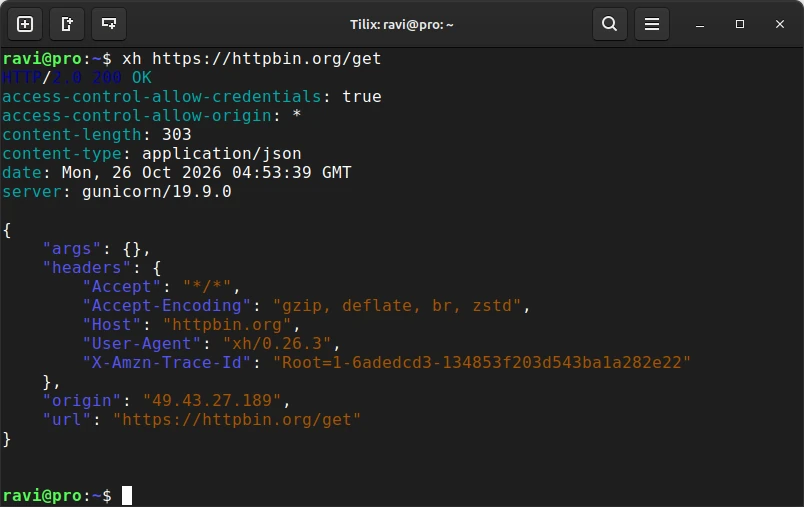
If you like HTTPie’s syntax but want a faster, standalone alternative, xh is worth a look. Written in Rust, it reimplements much of HTTPie’s command-line interface and is distributed as a single executable, making it convenient to install on servers and use in containers.
xh supports HTTP/2 and includes a --curl option that prints the equivalent curl command instead of sending the request. This is useful when you develop and test API requests interactively with xh but need to reproduce them in a script that uses curl.
However, xh does not implement every HTTPie feature, so check its compatibility before switching if you rely on advanced features or plugins.
Installing xh:
On Debian, and Ubuntu install xh using APT:
sudo apt update
sudo apt install xh
On Arch Linux, use the official repositories:
sudo pacman -S xh
On Fedora, the project documents installation through its COPR repository:
sudo dnf copr enable ducaale/xh
sudo dnf install xh
For distributions without a suitable package, including Rocky Linux, AlmaLinux, and RHEL, you can use the project’s installation script or download a prebuilt executable from the official xh releases page.
The installation script can be run with:
curl -sfL https://raw.githubusercontent.com/ducaale/xh/master/install.sh | sh
As with any script piped directly into a shell, review the script before executing it, particularly on production servers.
Sending HTTP Requests with xh
Because xh follows HTTPie’s request syntax, you can send a POST request with JSON fields using a familiar, readable command:
xh POST https://httpbin.org/post name=tecmint role=admin
To print the equivalent curl command without sending the request, add --curl:
xh --curl POST https://httpbin.org/post name=tecmint role=admin
xh also provides an xhs command that defaults to HTTPS. For example, xhs example.com is equivalent to xh https://example.com.
If you want HTTPie’s readable request syntax without installing a Python-based tool, xh is a practical alternative, provided its feature set meets your needs.
--curl option just saved you from rewriting a request by hand, share it with someone who still translates API calls into curl flags manually.4. curlie
curlie takes a different approach from xh. Instead of implementing its own HTTP client, it acts as a frontend to curl, combining curl’s options with HTTPie-style request syntax and formatted output.
This is useful when you need curl-specific features, such as custom TLS settings, connection options, or protocol support, but prefer a more readable way to construct HTTP requests. curlie also writes response headers to standard error and streams output without buffering the entire response, making it useful for inspecting streaming responses.
Installing curlie: curlie isn’t in the default repositories of most distributions, so the easiest way to install it on any Linux system is the Webi installer, which places the binary in your home directory without needing root:
curl -sS https://webinstall.dev/curlie | bash
Review the installer before executing it if you need to verify what it downloads and changes.
If you already have Go installed, you can install curlie directly:
go install github.com/rs/curlie@latest
The Go installation places the executable in your configured Go binary directory, typically ~/go/bin. Make sure that directory is in your PATH.
You can find additional installation methods and prebuilt binaries in the official curlie repository.
curlie accepts curl options first, then an optional method, the URL, and HTTPie-style items. In this example, -v is a normal curl flag, while name=tecmint is HTTPie-style JSON data:
curlie -v POST httpbin.org/post name=tecmint
Sending HTTP Requests with curlie: curlie accepts curl options first, followed by an optional HTTP method, the URL, and HTTPie-style request items. For example, -v enables verbose output, while name=tecmint specifies a JSON field:
curlie -v POST https://httpbin.org/post name=tecmint
When running interactively, curlie pretty-prints and colourises JSON responses. You can also force formatted JSON output with --pretty.
Like xh, curlie supports --curl, which prints the underlying curl command instead of executing the request:
curlie --curl POST https://httpbin.org/post name=tecmint
If you want HTTPie’s readable syntax without giving up access to curl’s options, curlie is a useful alternative. It is especially handy for debugging APIs, working with streaming responses, and translating readable requests into curl commands for scripts.
5. Wget and Wget2
The tools so far focus mainly on HTTP requests and APIs, but sometimes you need to download files reliably or mirror an entire website. That is where Wget remains useful. It supports HTTP, HTTPS, and FTP, can resume interrupted downloads, and follows links to retrieve website content recursively.
Wget2 is the GNU project’s successor to Wget. It supports HTTP/2, compression, and multithreaded downloads, which can make large or recursive downloads faster. However, Wget2 is not a perfect drop-in replacement: some options behave differently, so test scripts that depend on specific Wget features before switching.

On Ubuntu and Debian, the classic Wget is usually preinstalled, and Wget2 is available as a separate package:
sudo apt install wget wget2
On Fedora, Rocky Linux, AlmaLinux, and RHEL, install wget with dnf. On Fedora 40 and newer, this pulls in Wget2 as the provider of the wget command:
sudo dnf install wget
Fedora also packages the main Wget2 executable separately. Package names and availability vary across Fedora releases and Enterprise Linux distributions, so check your distribution’s repositories before assuming the same command works on Rocky Linux, AlmaLinux, or RHEL.
On Arch Linux, install both tools from the official repositories:
sudo pacman -S wget wget2
The -c option tells Wget to continue a partially downloaded file instead of downloading it again from the beginning, provided the server supports resuming:
wget -c https://releases.ubuntu.com/24.04/ubuntu-24.04.3-live-server-amd64.iso
Use the current filename listed on the official Ubuntu 24.04 download page when choosing an ISO. Check the published checksum when download integrity matters.
With Wget2, the –-max-threads option controls how many files are downloaded at the same time during a recursive download, which is where its speed advantage shows up:
wget2 --max-threads=8 --recursive --no-parent https://example.com/docs/
Replace the example URL with a real documentation directory. Before mirroring a public website, check its robots.txt rules, terms of use, and server load limits.
For a single large file, Wget’s resume option is convenient. For recursive downloads involving many files, Wget2’s parallelism and HTTP/2 support can offer a useful performance advantage.
6. aria2
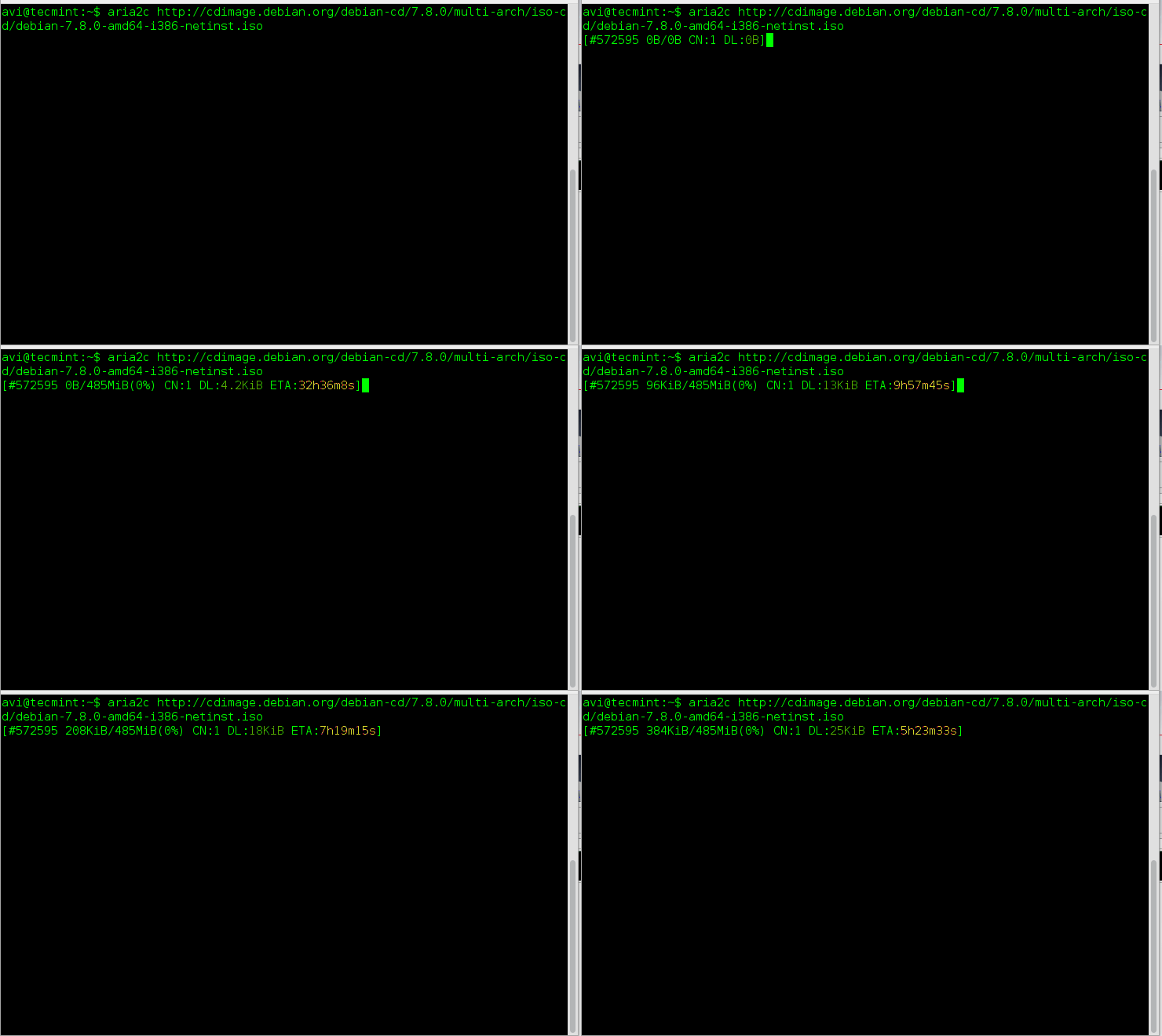
Wget2 runs several downloads at once, but each file still comes over a single connection. Aria2 goes one step further and splits a single file across multiple connections, and even across multiple mirrors, which can make a large download much faster when the server limits speed per connection.
aria2 supports HTTP, HTTPS, FTP, SFTP, BitTorrent, and Metalink, and it can verify file checksums automatically. It also has a JSON-RPC interface, which is why many download managers and web frontends use aria2 as their engine. Its latest release is 1.37.0, and while releases come slowly, the tool is still actively packaged by major distributions.
On Ubuntu and Debian, install aria2 from the default repositories:
sudo apt install aria2
On Rocky Linux, AlmaLinux, and RHEL, aria2 comes from EPEL, which you may already have enabled for HTTPie earlier:
sudo dnf install epel-release
sudo dnf install aria2
On Arch Linux, install it with pacman:
sudo pacman -S aria2
The -x option sets the maximum number of connections to one server and -s sets how many pieces the file is split into, so this command downloads one file over eight connections:
aria2c -x 8 -s 8 https://releases.ubuntu.com/24.04/ubuntu-24.04.3-live-server-amd64.iso
aria2 accepts up to 16 connections per server with -x, but some servers block or slow down clients that open many connections, so start with a smaller number on servers you don’t control.
7. Hurl
Most command-line HTTP clients send a request and display the response, leaving you to decide whether it is correct. Hurl, developed by Orange, takes this a step further: it runs HTTP requests defined in plain text files and checks the responses against assertions you specify. This makes it useful for API testing, regression checks, and automated tests in CI pipelines.
A Hurl file can chain multiple requests, capture values such as authentication tokens from one response and reuse them in subsequent requests, and assert on status codes, headers, and JSON fields.
Hurl is built on libcurl, so its supported protocols and TLS capabilities depend on the libcurl features available in the build.
On Ubuntu and Debian, you can install Hurl using the .deb package provided on the project’s GitHub releases page. The following example uses Hurl 8.0.1, the latest release listed at the time of writing:
VERSION=8.0.1
curl --location --remote-name https://github.com/Orange-OpenSource/hurl/releases/download/$VERSION/hurl_${VERSION}_amd64.deb
sudo apt update && sudo apt install ./hurl_${VERSION}_amd64.deb
Check the official Hurl releases page for newer versions before publishing or installing. This package is intended for compatible 64-bit Debian-based systems.
On Arch Linux, install Hurl from the official repositories:
sudo pacman -S hurl
On Rocky Linux, AlmaLinux, and RHEL, you can use a precompiled Linux tarball or build Hurl using Cargo:
cargo install --locked hurl
The official precompiled Linux binary requires glibc 2.35 or newer. Standard RHEL 10 systems meet that requirement, while RHEL 9 systems with glibc 2.34 do not.
On RHEL 9, use a compatible build method or run the official container image:
docker run --rm ghcr.io/orange-opensource/hurl:8.0.1 --version
Consult the official installation guide for the latest packages, prerequisites, and installation options.
Creating an API Test: Create a file named api-check.hurl using your preferred text editor:
nano api-check.hurl
Add the following test:
GET https://httpbin.org/get
HTTP 200
[Asserts]
header "Content-Type" contains "application/json"
jsonpath "$.url" == "https://httpbin.org/get"
Save the file and exit the editor. Here is what each part does:
GET https://httpbin.org/getsends a GET request to the endpoint.HTTP 200asserts that the response status code is 200. A different status causes the test to fail.[Asserts]starts the section containing additional response checks.header "Content-Type" contains "application/json"verifies that the response’s content type includes application/json.jsonpath "$.url" == "https://httpbin.org/get"extracts the url field from the JSON response and compares it with the expected URL.
Execute the file in test mode:
hurl --test api-check.hurl
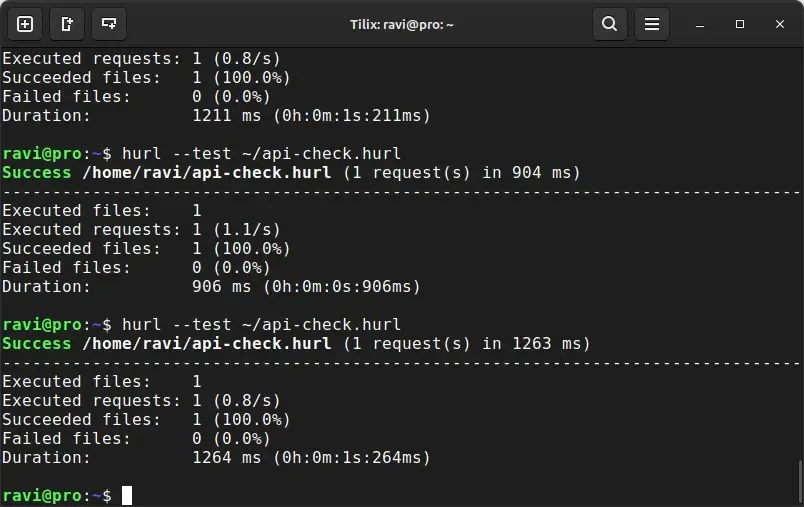
Hurl runs the request, evaluates the assertions, and displays a test summary instead of printing the full response body. A successful run reports the test as passing; an assertion failure identifies the failed check and causes Hurl to exit with a non-zero status.
That exit status makes Hurl suitable for shell scripts, cron jobs, and CI pipelines. You can schedule recurring API checks or make a deployment pipeline fail when an endpoint no longer returns the expected response.
8. Build and Save Requests in the Terminal with Posting
Hurl is great when you already know what to test, but when you’re exploring an unfamiliar API, it’s easier to work interactively. Posting is a terminal user interface (TUI), which is an app that runs inside your terminal but has panels, menus, and keyboard navigation like a desktop program, so it feels similar to Postman without leaving the terminal.
Posting stores requests as plain YAML files in a collection folder, which means you can commit them to Git alongside your project. It supports environments and variables, autocompletion, Vim-style keys, pre-request and post-response Python scripts, and importing requests from curl commands, Postman collections, and OpenAPI specs.
You can also export any request as a curl command. This is the tool that replaces HTTP Prompt in this list, and it also works well over SSH on a remote server.
Posting needs Python 3.11 or newer, which is newer than the default Python on RHEL 9 and Ubuntu 22.04. The project recommends installing it with uv, a Python package manager that downloads the right Python version for the tool automatically, so this method works the same on every distribution:
curl -LsSf https://astral.sh/uv/install.sh | sh
After installation, restart your terminal or load the shell configuration so that uv is available. Then install Posting:
uv tool install --python 3.13 posting
A collection is a directory containing your saved requests. Create one before launching Posting with the --collection option:
mkdir -p ~/api-requests
posting --collection ~/api-requests
The mkdir -p command ensures the directory exists, avoiding the error you would get if you passed a nonexistent path to Posting.
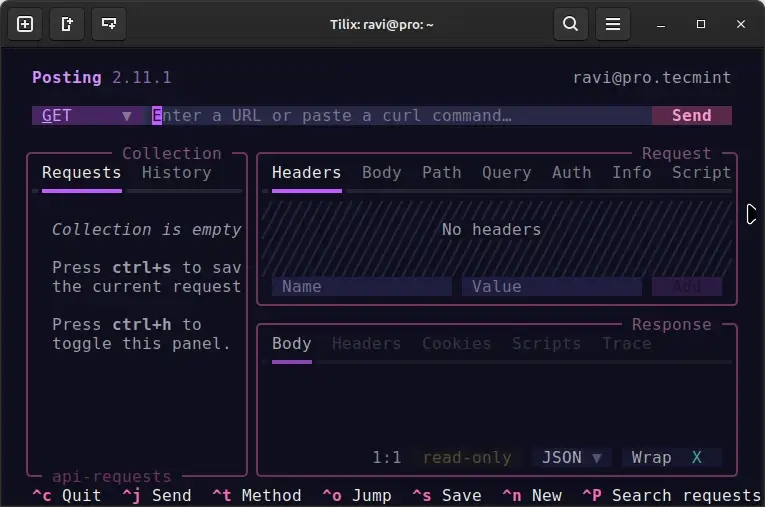
When Posting opens, you can enter a URL in the request bar and choose the HTTP method. To save time, paste a complete curl command into the URL bar. Posting converts it into a request and fills in the method, headers, and body where supported.
For example, paste:
curl -X POST https://httpbin.org/post \
  -H "Content-Type: application/json" \
  -d '{"name":"tecmint","role":"admin"}'
Send the request and inspect the response in Posting’s response panel. Once you’re satisfied with it, save the request to your collection. Posting stores it as a YAML file that you can inspect, edit, and track in version control.
Tips for Choosing the Right HTTP Client
With eight tools to choose from, the easiest way to decide is to match the tool to the job rather than trying to use one for everything.
For scripts, cron jobs, and anything that has to run on a server you didn’t set up yourself, stick with curl, because it’s already installed and its options don’t change between releases. For daily API work at your own desk, HTTPie or xh will save you a lot of typing, and xh is the better pick for containers and minimal servers since it’s a single binary with no Python dependency.
For downloads, Wget is fine for single files and site mirroring, while aria2 is the better choice for large files on servers that limit speed per connection. When you want checks that run repeatedly, such as confirming an API still returns the right data after every deployment, write them as Hurl files instead of shell scripts full of grep commands.
Finally, be careful with tokens and passwords on the command line, whichever tool you use. Anything you type as an argument ends up in your shell history and can be visible to other users through ps while the command runs, so store secrets in an environment variable, a HTTPie session file, a Hurl --variables-file, or a Posting environment file with tight permissions instead.
Conclusion
curl remains the one HTTP client every Linux user should know, but tools like HTTPie, xh, and curlie make API work much faster, while Wget2 and aria2 handle large downloads better than a general-purpose client.
Hurl and Posting fill the gaps for automated API testing and interactive exploration, and both store requests in plain text files you can keep in Git.
If you want to get more comfortable with curl, wget, and the other commands that sysadmins use every day, our 100+ Essential Linux Commands course covers them with practical examples.
And once your Hurl checks or curl requests start growing into longer scripts, Bash Scripting for Beginners shows you how to turn them into reliable, reusable automation.
We’d love to hear which HTTP client you reach for first. Do you still use curl for everything, or have you switched to HTTPie or xh for API work? Have you replaced shell scripts with Hurl tests in your CI pipeline?
And if there’s an HTTP client you use that isn’t on this list, feel free to share it in the comments along with what you use it for.

Lynx?
@Chris,
Thanks, we will include Lynx to the list..
Links as well :)
Very interesting and very helpful information
These are great. I usually use curl for command line.